MODULE DOCUMENTS
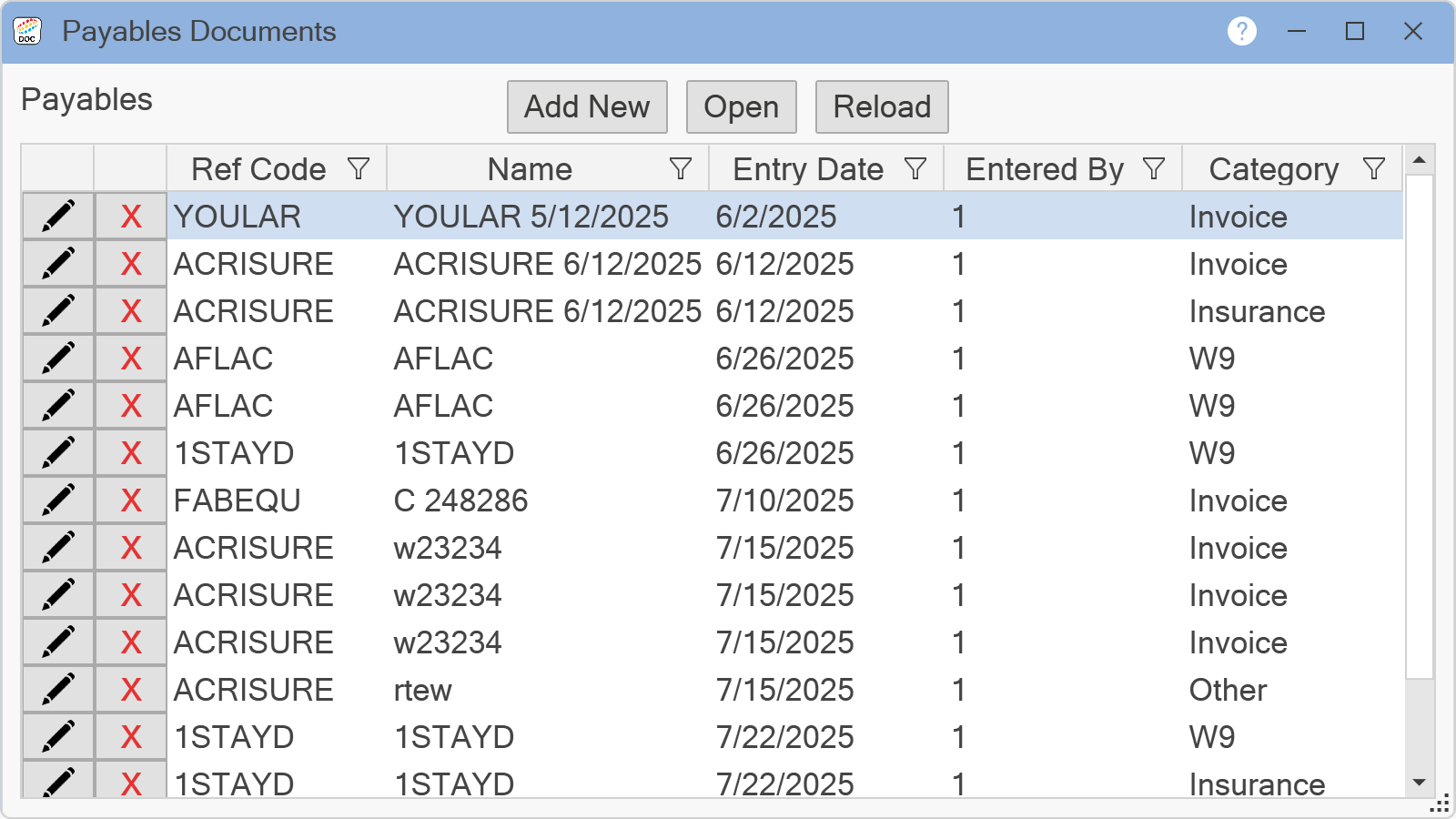
This window lists documents attached to the record from which the window is opened. If opened from a posting, then it will show all documents attached to that transaction. If opened from a maintenance form, then it will show all documents attached to that particular entity, such as a vendor, employee, customer, or equipment. The Documents window is the primary location from which documents are managed. Documents may be added, deleted, and viewed from this window. At the top of the window, the title bar indicates which module the selected record belongs to.
Click the X button to delete that file.
Click the Edit .png) button to change the properties of a file. The Document Properties window will appear. The Effective Date, Category, and Description can be changed if desired. Click the Save button to save any changes made and be returned to the module Documents window. Click the Cancel button to not make any changes and be returned to the module Documents window.
button to change the properties of a file. The Document Properties window will appear. The Effective Date, Category, and Description can be changed if desired. Click the Save button to save any changes made and be returned to the module Documents window. Click the Cancel button to not make any changes and be returned to the module Documents window.
Double-clicking on a file will display the contents of the file. Selecting a file, then clicking the Open button will also display the contents of the file.
To add a new entry into the Document Manager, click the Add New button. The following window will appear:
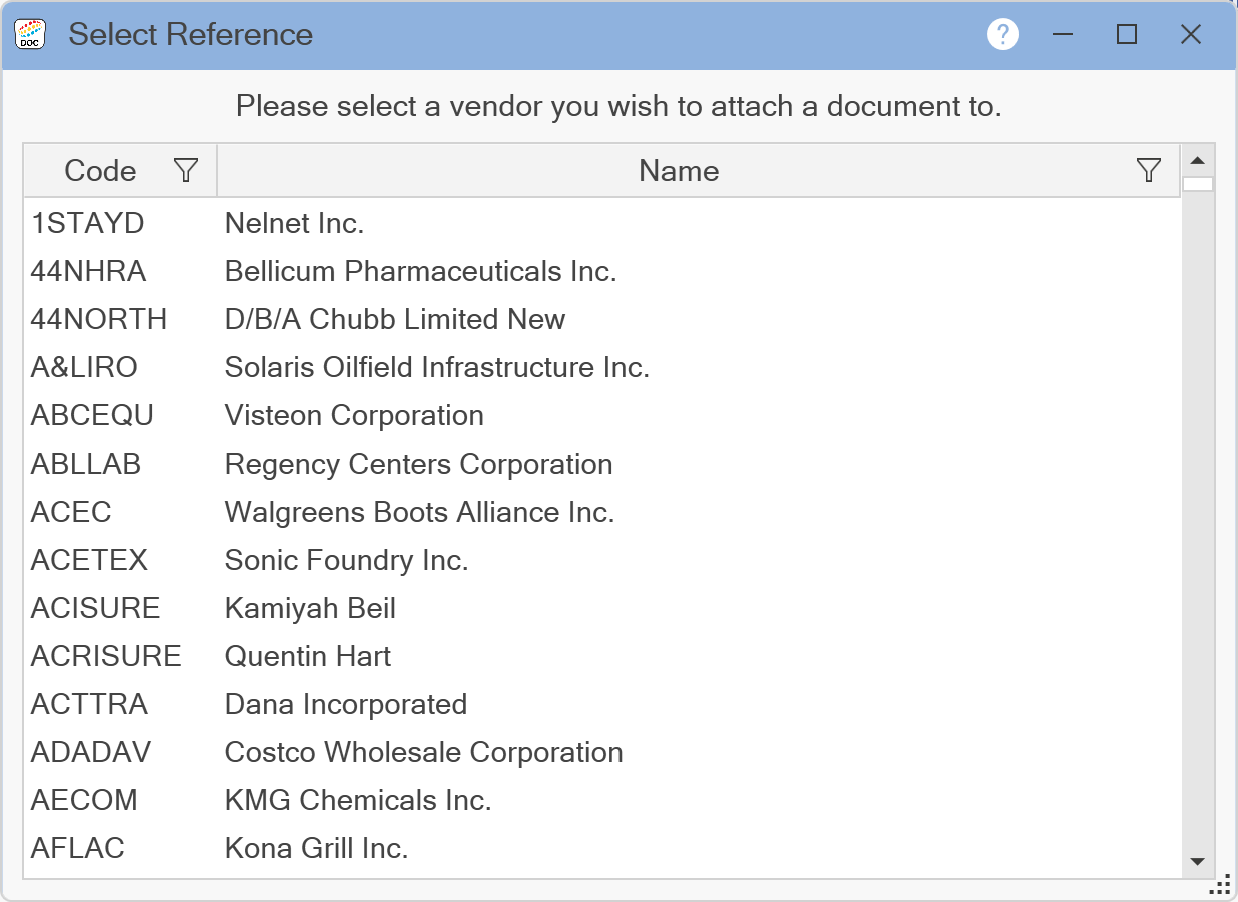
Select an item to attach the new document to by double-clicking on an item. Different modules will have a different list of items to select:
From the Customers module, then select a customer.
From the Equipment module, then select an equipment item.
From the Fixed Assets module, then select a fixed asset.
From the Inventory module, then select an inventory item.
From the Payables module, then select a vendor.
From the Payroll module, then select an employee.
Then the Documents window will appear. For documentation on the Documents window, please see the following topic: Documents